
You can add captions to a video automatically in two ways: upload it to an AI caption tool, or use the platform's own auto-caption feature. Either way, software transcribes your audio, you fix a few words, then you style and export. Here's how to do that well on every platform — and where the free tools quietly trip you up.
The quick answer: how to add captions to a video automatically
To add captions to a video automatically, you run your clip through an auto caption generator or a platform's native feature — three moves that never really change:
- Pick your engine. Use a platform's native captions (TikTok, Reels, Shorts) or a standalone tool like Descript, Kapwing, VEED or CapCut.
- Let it transcribe. The tool runs speech-to-text — what the industry calls ASR — and drops timed caption cues onto your timeline in seconds.
- Review, style, export. Fix any misheard words, drag the text into the safe zone, then export it burned-in or as an SRT file.
That's the loop. Knowing how to add captions to a video automatically isn't the hard part — the rest of this guide is about doing each step well, so your captions get read, stay in sync, and don't cost you a subscription you didn't need.
Captions vs. subtitles vs. closed vs. open captions
People use captions, subtitles, closed captions and open captions interchangeably, but they mean different things — and the difference tells you whether to burn text in or ship a separate file. Here's how the four compare:
| Term | What it means | Assumes sound off? | File or pixels? |
|---|---|---|---|
| Captions | Dialogue plus non-speech cues — [music], [applause], speaker labels. Built for accessibility. | Yes | Either |
| Subtitles | A translation of the spoken dialogue for viewers who can hear but don't speak the language. | No | Either |
| Closed captions (CC) | A separate, toggleable file (SRT/VTT) the viewer switches on or off. | Yes | File |
| Open captions | Text burned into the pixels — always on, can't be toggled or edited later. | Yes | Pixels |
So when someone asks how to add closed captions to video, they mean attaching a separate SRT/VTT file the viewer can toggle. Open captions are the "always-on" text you see hardcoded onto most TikToks. For silent, autoplaying feeds you usually want open captions; when you need a file that machines and viewers can toggle, you want closed. More on that trade-off below.
The fastest way: auto-caption any video in 4 steps
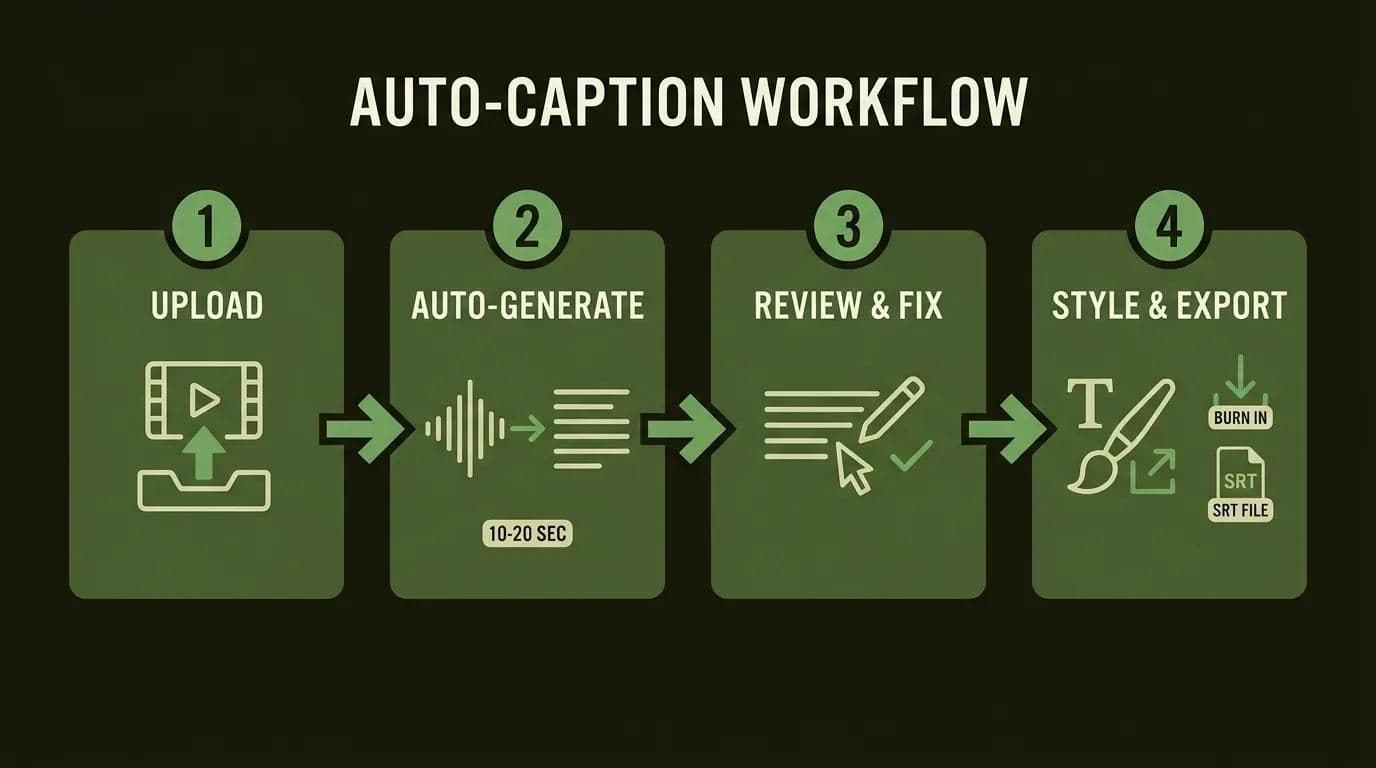
Whether you're using an AI subtitle generator in the browser or a desktop editor, the workflow is the same four steps. This is how to add subtitles to video automatically without babysitting a timeline.
- Upload your video. Drop the file into the tool (or open the platform's editor). Clean audio in, clean captions out — a decent mic matters more than any setting here.
- Auto-generate. Hit the caption button. The auto subtitle generator transcribes your speech and time-stamps each phrase. On a 60-second clip this takes maybe 10–20 seconds.
- Review and fix. Read the first pass out loud against the audio. This is the step everyone skips and regrets — see the accuracy section below.
- Style and export. Choose a font, size and position, then export. Burn the captions into the pixels for a social feed, or download an SRT for anything you need to toggle later.
Clip generators like OpusClip and Vizard roll these four steps into one — they auto-reframe your footage and auto-add captions per platform as they cut your long video into shorts, which is handy if captioning is just one stop on a bigger repurposing line.
How accurate are auto-captions (and what breaks them)?
Modern ASR is genuinely good — roughly 90–95% accurate on clean, single-speaker audio. But "99% accurate" marketing claims quietly assume perfect conditions, and real footage rarely is. From hands-on experience, auto-captions break in predictable places: thick accents, background noise, homophones ("their/there"), proper nouns and technical jargon, two people talking over each other, and dead silence at the very start of a clip.
The practical, production-tested habit: watch the first minute with the captions on before you trust the rest. From real-world footage, names, brands and numbers are where auto-captions embarrass you, so those are worth a manual pass every time.
How to edit and fix caption timing
If the words are right but they show up early or late, that's a timing problem, and there are only two flavors of it. If every cue is off by the same amount, apply a global offset — shift the whole track a few hundred milliseconds and you're done. If only a few cues drift, edit those individual start and end times by hand.
For quick fixes, the visual timelines in Kapwing or VEED are enough. When you need frame-perfect control over an SRT, reach for Aegisub, Subtitle Edit, or even VLC's built-in track delay. Editing auto-generated captions is 90% of what separates a lazy caption job from one that reads cleanly.
How to add captions on every platform
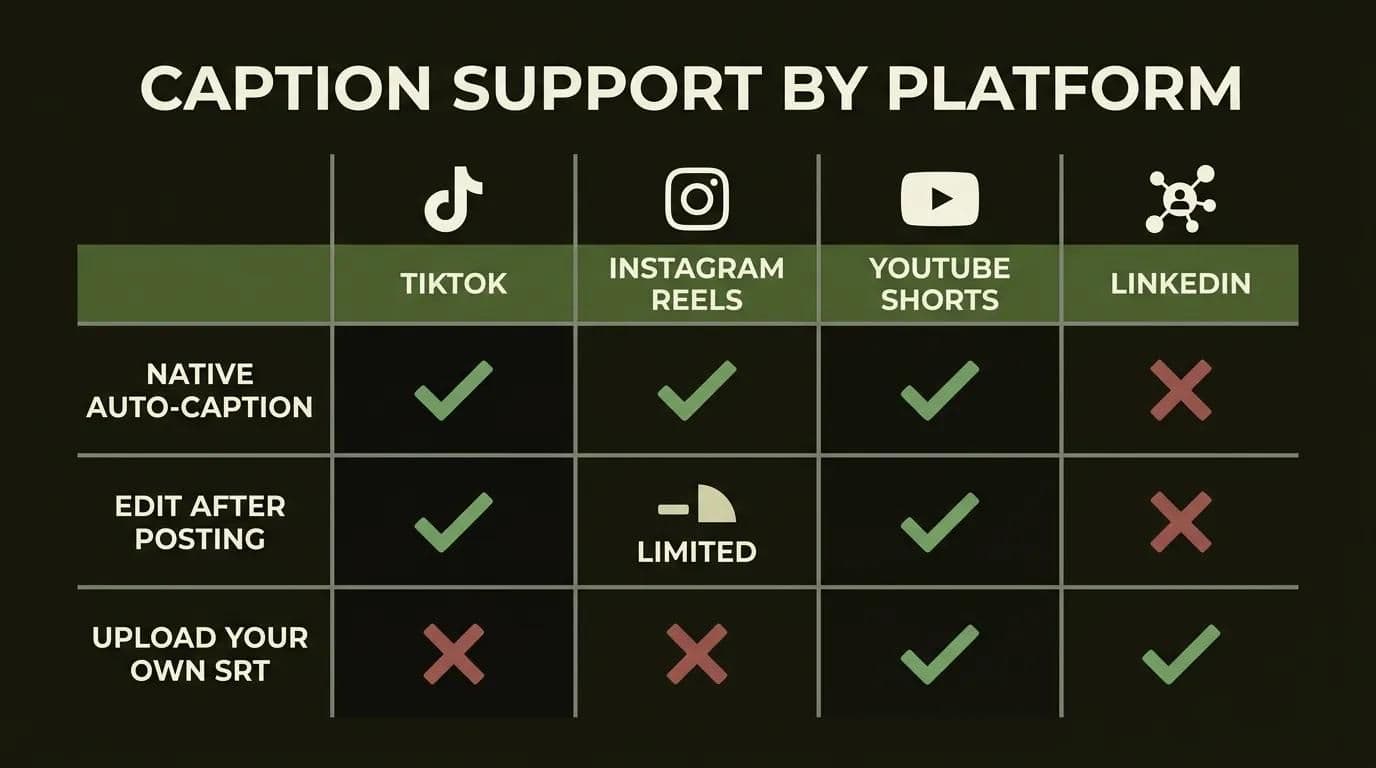
Here's the part almost every guide skips: each platform handles captions differently, and the "best" method depends on where the video lives. TikTok, Reels and Shorts caption for you natively; LinkedIn makes you do the work up front. This matrix is the fast reference, and it's a natural next step once you've nailed down building your short-form workflow.
| Platform | Native auto-caption? | Edit after posting? | Upload your own SRT? | When to burn in instead |
|---|---|---|---|---|
| TikTok | Yes — Captions feature | Yes (text + position) | No | For a custom animated style |
| Instagram Reels | Yes — Captions sticker | Limited | No | For branded fonts and colors |
| YouTube Shorts | Yes — auto + Studio editor | Yes (Studio → Subtitles) | Yes (long-form) | Rarely — Shorts CC is solid |
| No native auto-captions | No — upload at post time only | Yes — SRT/VTT at upload | Safest bet for feed autoplay |
TikTok
To learn how to add captions to TikTok automatically, tap the Captions option in the editor after you upload or record. TikTok transcribes the audio, then lets you tap any word to correct it and drag the caption block to reposition it. Keep it left of the right-hand button column so a "like" tap never lands on your text.
Instagram Reels
For how to add subtitles to Instagram Reels, use the Captions sticker in the Reels editor — Instagram auto-generates the text from your audio. You can pick a style and font, but editing is limited, so proofread before you post. If a brand look matters, burn captions in with an external tool first, then upload the finished file.
YouTube Shorts
Wondering how to add captions to YouTube Shorts? Shorts show auto-captions by default, and for anything you want polished, open YouTube Studio → Subtitles and edit the transcript there. Studio's subtitle editor also lets you upload your own SRT on long-form uploads. YouTube reads that caption text for search, which matters more here than on other platforms.
LinkedIn is the odd one out, and it's where most people get stuck. There's no native auto-caption button, so how to add subtitles to a LinkedIn video means uploading a caption file yourself — and only at post time. Miss it, and you can't add captions after publishing without deleting and reposting.
The gotchas worth memorizing: LinkedIn accepts .SRT or .VTT files, but you attach them only during upload; the SRT filename must match your video filename; and the file should be UTF-8 encoded or your accented characters turn to gibberish. Because so many B2B viewers scroll on mute, this is exactly the case for captioning product videos that sell — get the SRT right once and every autoplay view counts.
Animated caption styles that actually lift retention
Static white text works. But animated captions — where words pop, highlight or slide in on beat — are the format that keeps thumbs from swiping. The named styles you'll see everywhere: word-by-word (each word appears as it's spoken), karaoke (a highlight sweeps across the line), Hormozi-style (bold, punchy, color-swapped keywords), and minimal (clean single lines). This is the same energy you'd bring to captioning repurposed podcast clips, where a talking head needs all the visual movement it can get.
Do these lift watch time? Reported ranges land around 23–40% higher average watch time versus flat, poorly-timed text — enough to matter, though creator-sourced figures deserve a pinch of salt.
Here's the gotcha nobody sells you: over-animation backfires on talking-head content. If your captions cover the speaker's mouth and eyes, you break the human signal viewers came for. Keep animated text lower on the frame, keep it readable, and don't let the effect out-shout the face. And once your captions are set, layering b-roll under captions is a separate workflow — pair the two carefully so neither fights for attention.
If you'd rather not build and maintain this caption-and-repurpose pipeline yourself, hand it to our content team → and keep your focus on the ideas.
Where to put captions: the safe zone for vertical video
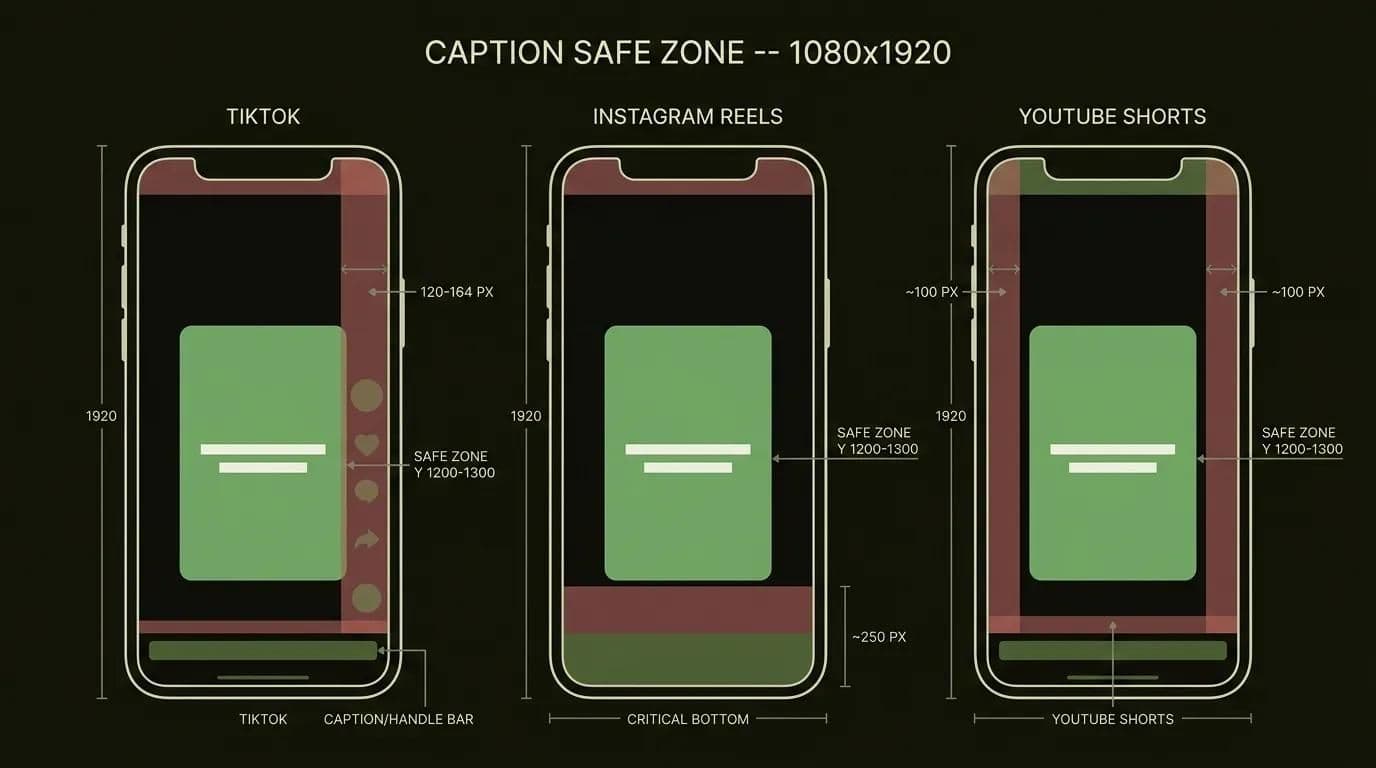
Position is half the battle. Every vertical app (the 9:16 aspect ratio) stacks its own buttons and bars over your video, and if your captions land under them, viewers never read a word. The caption safe zone is the region no UI covers — and unlike most advice, here are the actual pixel specs on a 1080×1920 frame.
| Platform | UI covers this space | Keep captions here |
|---|---|---|
| TikTok | Right button column ~120–164px; bottom handle/caption bar | Lower-middle third, left of the buttons |
| Instagram Reels | Bottom ~250px (caption, audio, actions) | Above the bottom quarter |
| YouTube Shorts | ~100px side margins; title and controls at the bottom | Centered, within the middle 70% |
| All vertical video | — | Inside a 900×1400 centered box, around Y 1200–1300 |
Two more rules that make captions readable on a phone: never run more than 2 lines at once, and keep each line to about 32 characters (broadcast tops out at 42, but mobile wants shorter). Short, centered phrases in the lower-middle third — not the absolute bottom — is the sweet spot.
Why captions matter: accessibility, silent autoplay and watch time
If you're still deciding whether captions are worth the ten extra minutes, the data settles it. Around 85% of videos are watched without sound on social feeds — closer to 80% for short-form specifically. No captions means most of your audience is watching a silent movie with no subtitles.
Captions don't just prevent that loss; they measurably lift engagement. Facebook (with Verizon Media and Publicis) found captions add about +12% average watch time, eMarketer reported subtitles lift viewing by up to +40%, and completion rates run 91% with subtitles versus 66% without.
What captions do to watch time and completion (2026 data)
Data table
| Metric | With captions | Without captions |
|---|---|---|
| Video completion rate | 91 | 66 |
| Avg watch-time lift (Verizon/Publicis) | 12 | 0 |
| Avg viewing lift (eMarketer) | 40 | 0 |
There's an accessibility case too, and increasingly a legal one. Captions serve deaf and hard-of-hearing viewers, non-native speakers, and anyone in a quiet office or a loud train. Standards like WCAG 2.1 AA, the ADA, and the European Accessibility Act all point the same direction — captioned video isn't a nice-to-have anymore.
Do captions actually help SEO?
Yes — but only if you understand the mechanic, because this is where good intentions go to waste. Search engines can't watch a video, but they can read caption text. YouTube, for one, indexes your caption transcript, which is how a Short can surface for a phrase someone actually said out loud.
Here's the nuance no tool page mentions: burned-in (open) captions are just pixels — they're baked into the image and are not machine-readable. If your only captions are hardcoded onto the frame, a crawler sees nothing to read. So the SEO-smart move is to do both — burn open captions for the silent-autoplay feed and attach or publish the SRT/transcript so search engines get indexable text. Belt and suspenders, and it costs you nothing extra.
The best free auto-caption tools (no watermark) in 2026
Everyone wants to know how to add captions to video for free, and the honest answer is: "free" almost always hides a catch. The real question isn't the sticker price — it's what's gated. Usually it's one of three things: a watermark on your export, a minutes cap, or a paywall on the actual SRT-file download. Here's the fair rundown of what each automatic subtitle generator online really gives you at $0.
| Tool | Free tier reality | Watermark on free? | Paid entry (2026) |
|---|---|---|---|
| Native (TikTok/Reels/Shorts) | Full auto-captions, unlimited | No | Free |
| Choppity | Free up to 1 hour, no watermark | No | Paid for longer clips |
| Descript | Free plan ~1 hr/month, captions + styling | No | ~$16–24/mo |
| EchoWave | Free, no signup, no video limit | Not stated | — |
| Kapwing | Free but limited minutes | Yes | Pro (no watermark) |
| VEED | Free start; SRT download is paid | Not stated | Creator ~$20/mo |
| CapCut | Auto-captions moved behind Pro in 2025 | Yes on free export | Pro ~$9.99/mo |
Two honest notes. First, the CapCut story: its 2025 restructure pushed auto-captions, 4K export and watermark-free output behind Pro — so "CapCut auto captions free" isn't really a thing anymore, and rivals like Descript now openly counter-position on it. Second, the best free AI caption generator with no watermark for most people isn't a fancy app at all — it's the native platform captions plus one genuinely-free desktop tool (Choppity under an hour, or EchoWave). For the full lineup, see the best captioning and video tools. Only pay for the best auto caption app when you need real volume, guaranteed no watermark, or downloadable SRTs for LinkedIn — which is exactly the kind of cost-per-minute math the lean creator tool stack is built around.
Burn captions yourself with one ffmpeg command
Here's the cool part — if you've got an SRT and you're comfortable in a terminal, you don't need a GUI at all. An SRT file is just numbered cues with timecodes and text:
1
00:00:00,000 --> 00:00:02,400
Here's how to burn in captions yourself.

2
00:00:02,400 --> 00:00:05,000
No GUI, no watermark, no monthly fee.
Save that as captions.srt next to your video, then hardcode it into the pixels with a single command:
ffmpeg -i input.mp4 -vf "subtitles=captions.srt" -c:a copy output.mp4That's it — -vf subtitles renders the SRT onto every frame, -c:a copy leaves your audio untouched, and you get a captioned, watermark-free file in seconds. It's the most repeatable, production-tested way to batch-caption a folder of clips without touching a subscription.
How Techsy approaches captioning at scale
At Techsy, we build content and video workflows for teams that publish in more than one language, so captions are rarely a one-off for us — they're a pipeline. The trick isn't picking the flashiest tool; it's wiring transcription, review, styling and export into a repeatable system so a single source video ships correctly across every platform's safe zone and file rules.
Where we add the most value is multilingual reach. Modern tools auto-caption in 100+ languages, and we pair that with human review so a global launch goes out with clean captions in all 10 languages we cover — not machine-translated word salad. If captioning is part of a broader push, it fits neatly into your content marketing toolkit rather than living as a separate chore.
We're not the answer for everyone. If you publish in one language and post a few clips a week, native captions plus a free desktop tool will serve you perfectly, and we'll happily tell you so. But if captions, translation and cross-platform publishing are eating your team's week, that's the exact problem we automate. Need captions in 10 languages for a global launch? Get a free content-workflow consultation →
Frequently asked questions
What's the difference between captions and subtitles?
Captions are built for accessibility — they transcribe dialogue and non-speech sounds like [music] or [applause], and they assume the viewer has no audio. Subtitles translate the spoken dialogue for people who can hear but don't speak the language. In everyday social use the words blur together, but that's the real distinction.
Are auto-generated captions accurate?
Modern speech-to-text runs about 90–95% accurate on clean, single-speaker audio, and lower with accents, background noise or heavy jargon. Treat the "99% accurate" marketing claims as best-case, not typical. Always review the first pass — proper nouns, brand names and numbers are where auto-captions slip up most.
How do I edit or fix caption timing?
There are two cases. If every caption is off by the same amount, apply a single global offset to shift the whole track. If only a few cues drift, edit those individual start and end times. Kapwing and VEED handle quick visual fixes; Aegisub, Subtitle Edit and VLC give you precise control over an SRT.
Should I burn captions in or use a separate SRT file?
Use open (burned-in) captions for silent, autoplaying feeds like TikTok and Reels, where you can't rely on the viewer toggling anything on. Use a closed SRT file when you need it toggleable, editable, or readable by search engines. The best of both worlds: burn captions for the feed and attach an SRT for accessibility and SEO.
Do captions actually help SEO or discoverability?
Yes, because search engines read caption text even though they can't watch video — YouTube indexes your transcript for search. But there's a catch: burned-in captions are pixels, not machine-readable text. So for discoverability, always attach an SRT or publish a transcript rather than relying on hardcoded captions alone.
What's the best free AI caption generator with no watermark?
For most creators it's not a single app — it's native platform captions (TikTok, Reels, Shorts) plus one genuinely-free desktop tool like Choppity (free under an hour, no watermark), Descript, or EchoWave. Watch for the usual traps: watermarks on free exports, minutes caps, and SRT downloads locked behind a paid tier.
Where should captions go on the screen (safe zone)?
Put them in the lower-middle third — roughly Y 1200–1300 on a 1080×1920 frame — inside a 900×1400 centered box. Keep clear of TikTok's right button column (about 120–164px) and the bottom ~250px that Reels uses for its own UI. Not the absolute bottom, or the app's bars will cover them.
How many words or lines should each caption have?
Never exceed 2 lines at a time. Aim for about 32 characters per line on mobile (broadcast standard is 42, but shorter reads better on a phone). Short, centered phrases beat long sentences — viewers are scanning, not reading an essay, so give them bite-sized chunks that match the pace of speech.
Can I auto-caption in another language or translate captions?
Yes. Most tools support 100+ languages and can transcribe and translate, so you can caption one video in several languages from a single upload. Machine translation still needs a human eye for tone and names, though — which is exactly how we ship captions across all 10 languages we cover, without the machine-translated awkwardness.
Does CapCut still have free auto-captions?
Not the way it used to. CapCut's 2025 pricing restructure moved auto-captions, 4K export and watermark-free output behind Pro (around $9.99/mo). You can still caption on the free tier in limited ways, but for no-watermark exports you'll hit the paywall. Free alternatives like Choppity, Descript and native platform captions fill the gap.
Do captions increase watch time and retention?
The numbers say yes. Facebook (with Verizon Media and Publicis) measured about +12% average watch time with captions, eMarketer reported up to +40% more viewing, and completion runs 91% with subtitles versus 66% without. When feeds autoplay on mute, captions are often the difference between a scroll and a view.
How do I add captions to a LinkedIn video?
Upload an .SRT or .VTT file when you post the video — LinkedIn has no native auto-caption button, and you can't add captions after publishing. Two rules: the SRT filename must match your video's filename, and the file should be UTF-8 encoded. Generate the SRT in any caption tool first, then attach it at upload time.