
You can add b-roll to your videos automatically with AI in two very different ways: let a tool auto-insert matching stock clips from your transcript, or generate a brand-new shot from a text prompt. The first is what "automatically" actually means for most people; the second is your custom-shot upgrade. Here's how to do both well — and, just as importantly, when to skip AI b-roll entirely.
The quick answer: how to add b-roll to video automatically with AI
To add b-roll to video automatically with AI, you run your footage through an auto-b-roll tool that reads your words and drops in matching clips — four steps that barely change from tool to tool:
- Upload your video (or paste your script) into a tool like Submagic, OpusClip or Vmaker.
- Let it transcribe. The AI turns your audio into text and reads it for topics.
- Auto-insert. It matches those topics to stock clips and drops them onto your timeline at the right moments.
- Review and swap. Watch it back, replace anything that misfired, then export.
One tool pick to start with: if you want b-roll and captions together for the least money, Submagic's roughly $20/mo tier is the cheapest real option (verify current tier). Auto-b-roll is almost always one stop on a bigger repurposing line, so it helps to see where it sits inside the end-to-end shorts workflow.
The two kinds of AI b-roll: auto-stock vs AI-generated
Here's the split no tool page draws cleanly, and it's the single most useful thing to understand before you pick anything. "AI b-roll" is really two separate technologies wearing the same name — and only one of them is genuinely automatic. Here's how auto-stock and AI-generated b-roll compare:
| Aspect | Retrieval (auto-stock) | Generative (AI-created) |
|---|---|---|
| What it does | Auto-inserts existing stock clips | Creates net-new footage from a prompt |
| How | Transcript → semantic match → auto-place | Text prompt → diffusion / text-to-video model |
| Example tools | OpusClip, Submagic, Kapwing, Vmaker, Vizard | Runway, Pika, Stable Video Diffusion, Kaiber |
| Feels "automatic"? | Yes — basically one click | Not really — you prompt and place by hand |
| Best for | Real-world cutaways that already exist | Custom or abstract shots that exist nowhere |
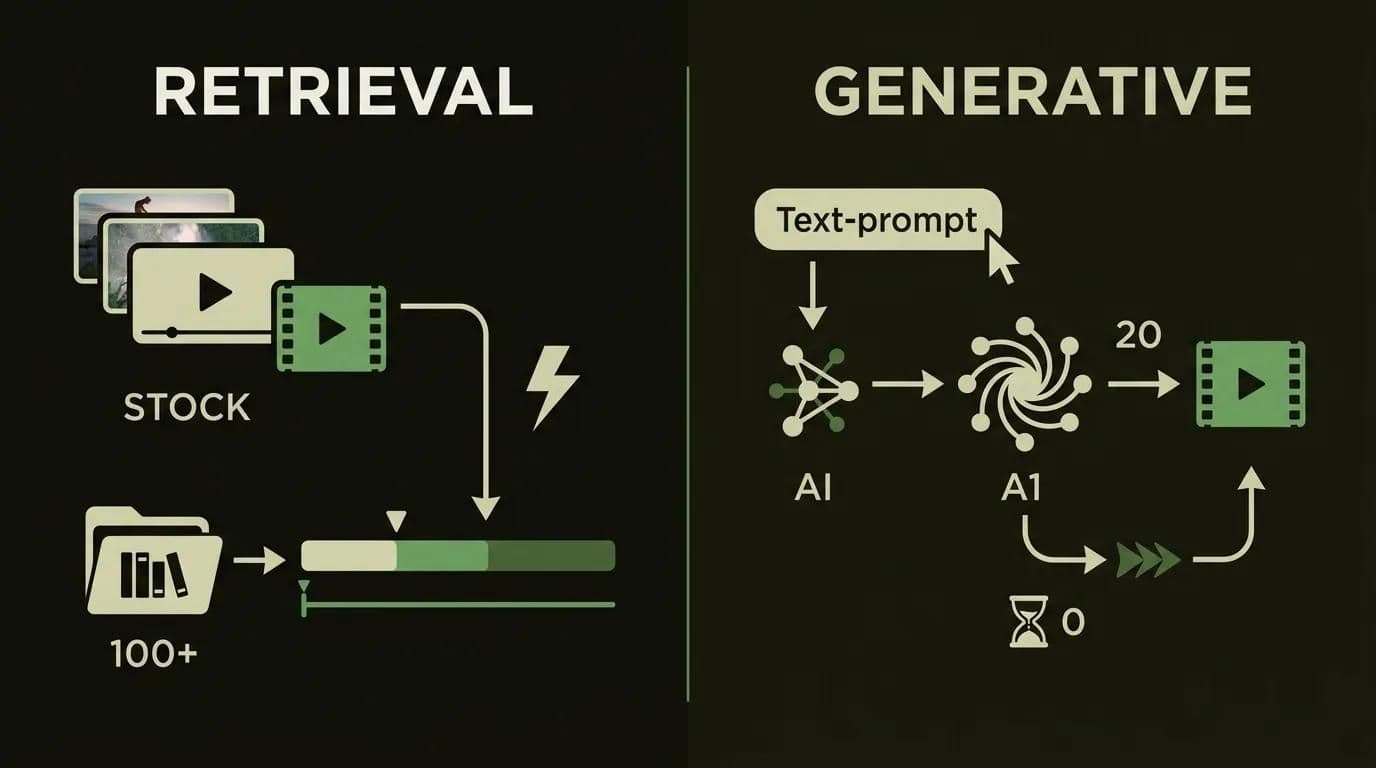
If you only remember one thing: stock footage vs AI b-roll isn't a fair fight for the "automatically" use case. Auto-stock wins on speed and effort every time. Generative is the specialist you call in for the shot that doesn't exist.
Retrieval b-roll (auto-inserted stock)
This is the auto b-roll most people are actually searching for. You add b-roll with AI by handing a tool your video; it reads the transcript, understands the topics, and pulls matching clips from a stock library — then places them for you. The big names here — OpusClip, Submagic, Kapwing, Vmaker, Vizard — all pull from libraries like Pexels, Storyblocks, Pixabay, iStock, Getty and GIPHY. You didn't shoot the footage, you didn't search for it, you just approved it. That's the whole appeal.
Generative b-roll (diffusion-created)
AI-generated b-roll is a different animal. Instead of retrieving a clip, a diffusion model generates one from your text prompt — think "a futuristic lab with purple hexagonal windows" that no stock library carries. Tools like Runway, Pika, Stable Video Diffusion and Kaiber live here. It's brilliant for custom, branded or abstract shots, but call it what it is: generative b-roll is semi-manual. You write prompts, wait, and drop the result in yourself — it's the upgrade path, not the one-click button.
How AI b-roll actually works (in plain English)
Ever wonder how the AI knows where to put the b-roll? It's less magic than it looks, and understanding it tells you exactly why it sometimes misses. Every auto-b-roll tool runs the same three-stage pipeline under the hood.
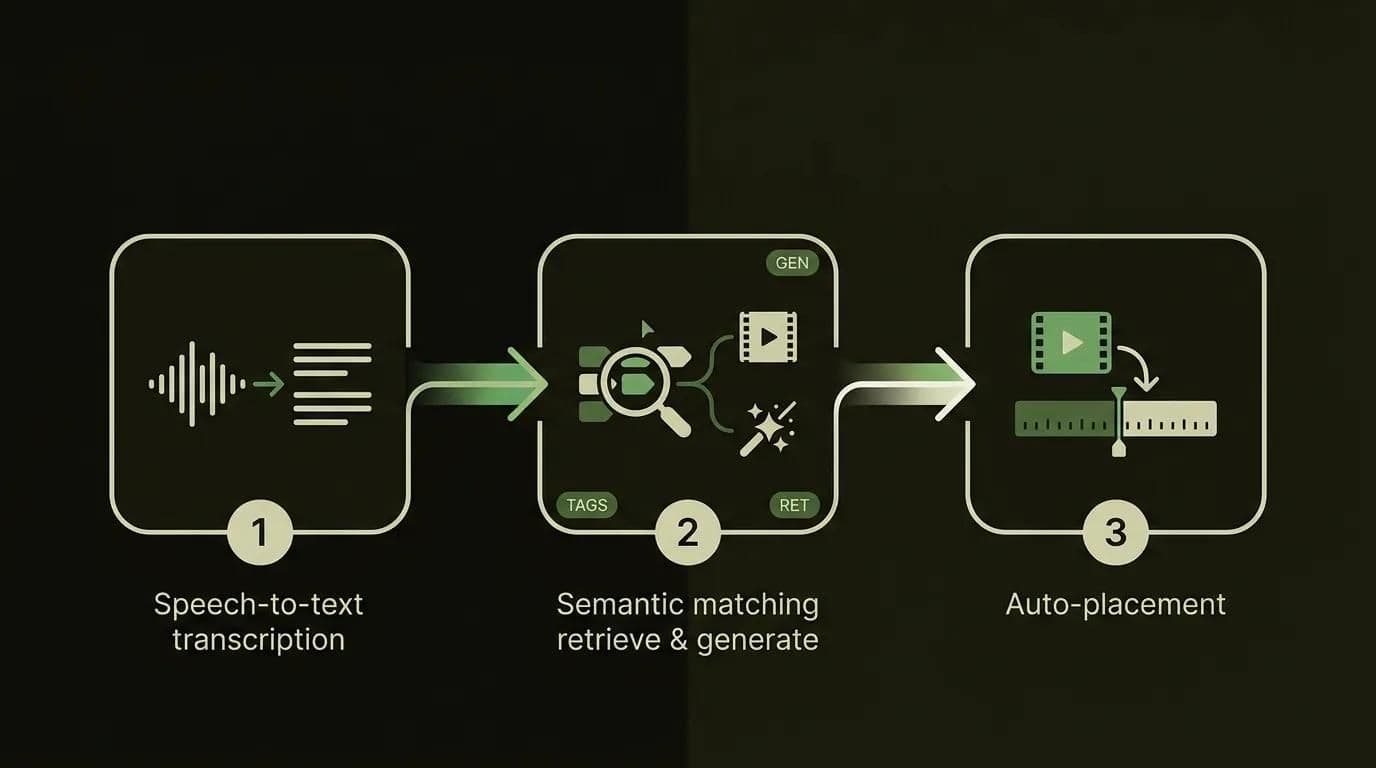
First, speech recognition (ASR) transcribes your audio into timestamped text — the tool now knows every word you said and when you said it. Second, it semantically matches those words to visuals: for retrieval, that means finding a stock clip tagged for your topic; for generative, it means turning the phrase into a prompt for a diffusion model. Third, it auto-places the clip using video-markup logic — dropping the cutaway onto your timeline at the exact timestamp the topic came up. So the AI isn't understanding your meaning; it's guessing from your words. That gap is why it occasionally serves a stock plane when you said "I'm plane-spoken."
How to add b-roll automatically with AI, step by step
Ready to actually do it? The hands-on flow differs a little between the two pipelines, so here's each one — starting with the auto-stock path, since that's the one that earns the word "automatically."
The auto-stock workflow (upload → transcribe → auto-insert → review & swap)
This is how to add b-roll to a video without babysitting a timeline:
- Upload your footage to a retrieval tool (Submagic, OpusClip, Kapwing, Vmaker) or connect your source video.
- Let it transcribe and auto-insert. Hit the auto-b-roll button; the tool reads your transcript and lays clips onto the timeline in seconds.
- Review before you export. Watch the whole thing once with fresh eyes. This is the step people skip and regret.
- Swap the misfires. Wondering how to swap the b-roll the AI picked? Every decent tool lets you click a placed clip and choose a replacement from the library, or delete it entirely.
Pro tip / the gotcha: never trust the first pass. The AI matched a keyword, not your intent, so a handful of clips will be almost-right-but-weird. Budget two minutes to swap those, and your "automatic" b-roll goes from obviously-AI to genuinely clean. That review-and-swap habit is the real skill — it's what separates hands-on, production-tested output from a pile of random stock.
The generative path for custom shots (prompt → generate → drop in)
When you need a shot that doesn't exist anywhere, you go generative. Write a tight prompt describing the scene, generate a few options in Runway, Pika or VEED, pick the best, and drop it onto your timeline manually. Be honest with yourself about the limits, though: clips usually cap at 3–8 seconds, human faces and hands still drift into the uncanny, and your usable rate can sit anywhere from 30% to 80%. It's powerful, but it's a craft session, not a one-click auto-insert.
The best AI b-roll tools in 2026 (honest picks by use case)
There's no single best AI b-roll generator — there's a best one for your situation. Below is the honest landscape, and for the wider picture of where these sit next to editors and voice tools, see the full AI video tool lineup. Clip generators like OpusClip and Vizard both auto-add b-roll while they cut your long video into clips (a dedicated OpusClip vs Vizard comparison is coming), so if you're already repurposing, your b-roll may come free with the workflow.
| Tool | Pipeline | B-roll source | Best for | Honest weakness |
|---|---|---|---|---|
| OpusClip | Retrieval | Pexels | Long→short repurposing and auto-b-roll in one flow | Real b-roll gated to the Pro tier |
| Submagic | Retrieval (+some generative) | Stock libraries | Cheapest way to get b-roll and captions together | Long-form→clips is a paid add-on |
| Kapwing | Retrieval | iStock + Pexels + Pixabay | Manual control plus auto-b-roll in a full web editor | Less "hands-off" than clip tools |
| Vmaker | Retrieval | Pixabay, Pexels, GIPHY, Getty | Fast, free one-click b-roll on existing footage | Library breadth over placement precision |
| Vizard | Retrieval | Storyblocks + Pexels | Volume clipping with smarter b-roll matching | Pricing reported inconsistently — verify |
| AutoCut (AutoBRoll) | Retrieval | Stock footage | Editors who live in Premiere Pro / DaVinci Resolve | Needs an NLE; not standalone or cloud |
| VEED / Descript | Generative + stock | Custom AI images + stock | Custom "visualized" b-roll inside an editor | Generated stills can look synthetic |
| Runway / Pika / SVD / Kaiber | Generative | Text-to-video diffusion | Shots that exist in no library | Not automatic; faces struggle; short caps |
A few honest picks. Fully automatic on a talking-head, cheapest with captions? Submagic (~$20/mo) or OpusClip Pro if you already repurpose long→short. Live inside an editor? AutoCut's AutoBRoll auto-inserts stock right in your Premiere Pro or DaVinci timeline. Just trying it for free? Vmaker or Kapwing. One licensing note before you monetize: retrieval clips ride the tool's stock license, but generative ownership is murkier — more on that in the FAQ.
What AI b-roll costs — and the free-plan b-roll trap
Here's the part the tool pages bury. "Is there a free AI b-roll generator?" — technically yes, but the free and starter tiers hand you almost no usable b-roll, and the gap between "free to test" and "usable at volume" is where the money hides. This is the b-roll paywall, and once you see it you can't unsee it.
| Plan | Free tier reality | Real b-roll unlocks at | What you actually get |
|---|---|---|---|
| OpusClip | Free $0 — 60 min/mo, watermark, exports vanish in 3 days | Pro $29/mo | Starter ($15) gives only ~3 stock clips/mo — nearly useless |
| Submagic | Free — 3 watermarked videos, 90s max | Starter $20/mo | Magic B-Rolls and word-level captions bundled |
| Kapwing | Free browser editor, limited minutes | Paid ~$16–24/mo (verify) | Auto-b-roll plus a full manual editor |
| Vmaker | Free AI b-roll tool | Paid tiers (verify) | One-click b-roll, big free library |
| VEED | Free 720p, no timeline cap | Paid ~$12–24/mo (verify) | Custom AI images plus stock |
| Generative (Runway/Pika) | Pika free 250 cr/mo; SVD open-source | Runway $12 / Pika $10 (verify) | Prompted clips, 3–8s, semi-manual |
Read that OpusClip row twice. The Starter plan at $15 gives you roughly three stock b-roll clips a month — real auto-b-roll doesn't switch on until Pro at $29. So "does OpusClip's free plan include b-roll?" — barely, and Starter isn't much better. Submagic is the value play precisely because $20 bundles Magic B-Rolls with captions instead of paywalling them separately. The smart framing is cost-per-minute of finished video, not sticker price: a flat sub with the library included beats premium stock subscriptions (~$30–200/mo) or single clips ($50–500 each) by a mile. If you'd rather skip the tool-juggling and paywall math entirely, have our team run your video pipeline →.
What it costs to unlock real AI b-roll (2026, verify current tier)
Data table
| Plan | Monthly price |
|---|---|
| OpusClip Starter (~3 clips) | 15 |
| Submagic (b-roll + captions) | 20 |
| OpusClip Pro (real b-roll) | 29 |
How much b-roll is too much?
More b-roll isn't automatically better — and yes, there's such a thing as too much. A solid default is the 60/40 rule: keep roughly 60% of your runtime on your A-roll (the person or main subject) and about 40% on b-roll cutaways. Push much past 50% b-roll and viewers lose the thread — they came for you, and a wall of stock clips buries the human they're following.
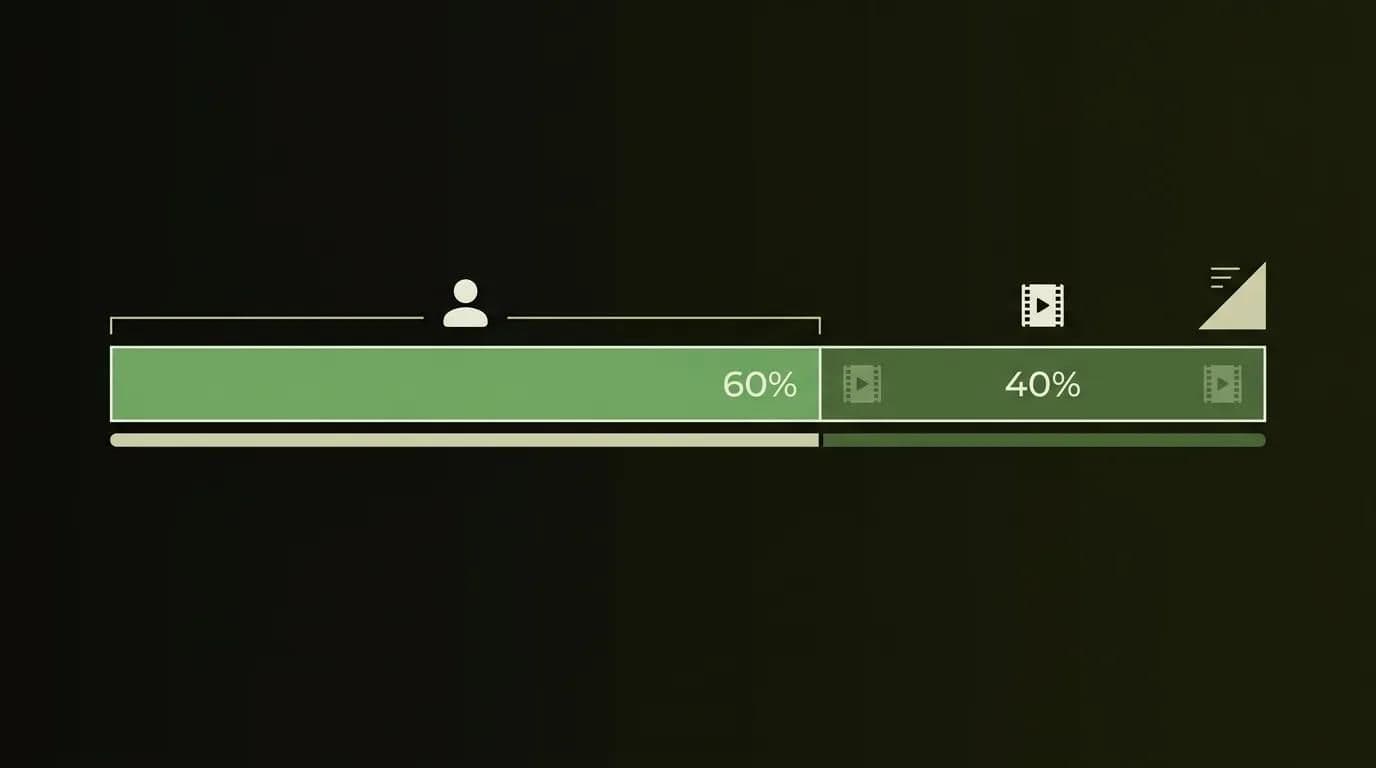
Does b-roll actually earn its keep? Marketing-blog data suggests b-roll covering ~35–50% of a video correlates with roughly +15–25% watch time (tutorials land around +19%), because a well-timed cutaway works as a pattern interrupt that resets attention. Treat those as estimates, not peer-reviewed gospel — but the direction is real. This matters most on longer talking-head and podcast content, where you're fighting a static frame; if that's your format, slicing a podcast into shareable clips and layering b-roll over the flat stretches is the exact retention move.
When manual b-roll still beats AI
Let's be fair — AI b-roll is not the answer for every shot, and pretending otherwise is how you end up with a video that feels off. Here's the honest rule: if the shot is about something specific and real, shoot it or source it yourself. AI retrieval and generation both guess at the generic, and there are cases where generic actively hurts.
| Situation | Use AI b-roll? | Why |
|---|---|---|
| A generic concept (typing, city, nature) | Yes | Stock nails it; nobody notices |
| Your actual product | No | AI can't show your SKU — shoot it |
| A specific person or your team | No | Generative faces drift; stock isn't them |
| A real event or location | No | Viewers spot a fake landmark instantly |
| An abstract idea with no footage | Generative | The one place diffusion shines |
Why does your AI b-roll look random or wrong? Usually one of three things: context mismatch (it matched a word, not your meaning), visual drift (clashing stock clips that don't share a look), or plain over-insertion. Brand-specific products are the classic trap — if you sell physical goods, real product footage beats any stock clip, which is exactly why AI tools for ecommerce video lean on shooting your own catalog. Fix a bad auto-pass by swapping the mismatched clips or, for generative, tightening the prompt and regenerating.
B-roll on Shorts, Reels & TikTok
Vertical changes the b-roll math. On a 9:16 Short, Reel or TikTok, your b-roll has to fill a tall frame and dodge the interface — and how much b-roll on a short skews higher than on landscape, because there's more dead vertical space to keep interesting. Two rules keep it clean.
First, mind the caption safe zone. Every vertical app stacks its own buttons and bars over your video, so keep meaningful b-roll action in the centered middle of the frame, not the edges the UI eats. Second, layer b-roll under your captions, not over them. Your text has to stay legible on top of busy footage, which is a whole coordination problem of its own — pairing b-roll with auto-captions means picking calmer clips behind the words and keeping the text in the readable lower-middle third. Get those two right and vertical b-roll reads as intentional instead of chaotic.
How Techsy approaches this
At Techsy, we build content and video workflows for teams that publish constantly and in more than one language, so b-roll is rarely a one-off — it's part of a pipeline. The value isn't picking the flashiest AI b-roll generator; it's wiring transcription, auto-insert, review-and-swap, captions and export into one repeatable system, so a single source video ships correctly across every platform.
Where we add the most is scale and reach. B-roll travels across languages far better than dialogue does — a well-chosen cutaway needs no translation — so a video repurposed for ten markets can share the same visual bed while the captions localize. If b-roll is one piece of a bigger content push, it slots neatly into the marketing tools behind video content rather than living as a separate chore. We're not the right call for everyone: if you post a few clips a week in one language, Submagic or a free tool will serve you perfectly, and we'll say so. But if b-roll, captions and cross-platform publishing are eating your team's week, that's the exact problem we automate. Want b-roll, captions, and clips handled for every video you ship? Get a free video-workflow consultation →
Frequently asked questions
What is AI b-roll, and is it the same as stock footage?
AI b-roll is b-roll a tool adds for you automatically, and it comes in two flavors. Retrieval b-roll auto-inserts existing stock clips from libraries like Pexels — so yes, that's often literally stock footage. Generative b-roll creates net-new AI footage from a prompt, which isn't stock at all. Same label, two technologies — knowing which one a tool uses tells you what to expect.
Is there a free AI b-roll generator?
Yes — Vmaker, Kapwing and OpusClip's free tier all let you try auto-b-roll at $0. But read the caveats: expect a watermark, minute caps, and in OpusClip's case exports that expire in three days. "Free to test the flow" is real; "free to publish at volume" usually isn't. Free tiers are for evaluating a tool, not running your channel on.
How does AI decide where to put the b-roll?
It transcribes your audio into timestamped text, semantically matches your words and topics to clips, then auto-places each clip at the timestamp where that topic came up. The key thing to understand: it's reacting to your words, not your meaning. That's exactly why it sometimes drops a literal, out-of-context clip — and why a quick human review pass matters so much.
Does adding b-roll actually increase watch time?
Marketing-blog data suggests it can — b-roll covering roughly 35–50% of a video correlates with around +15–25% more watch time (tutorials land near +19%), because a cutaway acts as a pattern interrupt that resets attention. Hedge those as creator-sourced estimates rather than peer-reviewed studies. The mechanism is sound, though: movement holds attention, and a static talking head loses it.
How much b-roll should a video have?
The 60/40 rule is a reliable default — about 60% A-roll (you or your subject) and 40% b-roll cutaways. Once b-roll passes roughly 50% of your runtime, viewers lose the person they're following and the video feels like a stock reel. On vertical Shorts you can lean slightly higher because the tall frame needs more visual filling, but the same "don't bury the human" principle holds.
Can I use AI b-roll commercially? Is it copyright-safe?
It depends which pipeline. Retrieval stock is usually license-cleared through the tool's library deal — but confirm your tier actually grants commercial use before you monetize. Generative output is murkier: ownership and commercial rights vary by platform and are still evolving. The safe move is to read the specific tool's license terms rather than assume "AI made it, so it's mine."
Stock-footage b-roll vs AI-generated b-roll — which should I use?
For most creators, auto-stock (retrieval) wins. It's faster, it's genuinely automatic, and real-world cutaways already exist in the library. Reach for generative only when you need a shot that exists nowhere — an abstract, branded or futuristic scene. In short: auto-stock for "just works" cutaways, generative for the custom shot. Trying to force generative into the everyday role is where people waste hours.
Why does my auto b-roll look random or wrong?
Three usual suspects: context mismatch (the AI matched a keyword, not your intent), visual drift (mismatched stock clips that don't share a look or color), and over-insertion (too many cutaways, too fast). The fix is quick — click the offending clip and swap it for a better library match, or for generative b-roll, tighten your prompt and regenerate. A two-minute review pass catches nearly all of it.
Can I add b-roll automatically in Premiere Pro or DaVinci Resolve?
Yes. Plugins like AutoCut's AutoBRoll auto-insert stock footage right inside your Premiere Pro or DaVinci Resolve timeline, so you never leave your editor. That's ideal if you already cut in an NLE and don't want a separate cloud tool. The trade-off: it needs the host editor installed — it isn't a standalone or browser app like the clip generators.
Does OpusClip or Submagic include b-roll on the free plan?
Not in any useful amount. OpusClip's Starter ($15) gives only about three stock b-roll clips a month — real auto-b-roll is gated to Pro ($29). Submagic is friendlier: its ~$20 Starter bundles Magic B-Rolls together with word-level captions. On both free tiers you can test the feature, but you can't realistically publish from them. Verify current pricing before you commit — tiers shift.
Key takeaways
- Two pipelines, one name. Retrieval auto-inserts existing stock (genuinely automatic); generative creates new footage from a prompt (semi-manual). Lead with retrieval for the "automatically" job.
- Always review and swap. The AI matched your words, not your meaning — budget two minutes to fix the misfires before export.
- Watch the b-roll paywall. Free and starter tiers hand you almost no usable b-roll; Submagic (~$20) and OpusClip Pro ($29) are where real auto-b-roll starts — verify current tiers.
- Keep the 60/40 balance. Around 40% b-roll lifts watch time; much past 50% buries the human viewers came for.
- Some shots need a camera. Your product, real people, real places — shoot those. AI b-roll is for the generic and the abstract, not the specific.